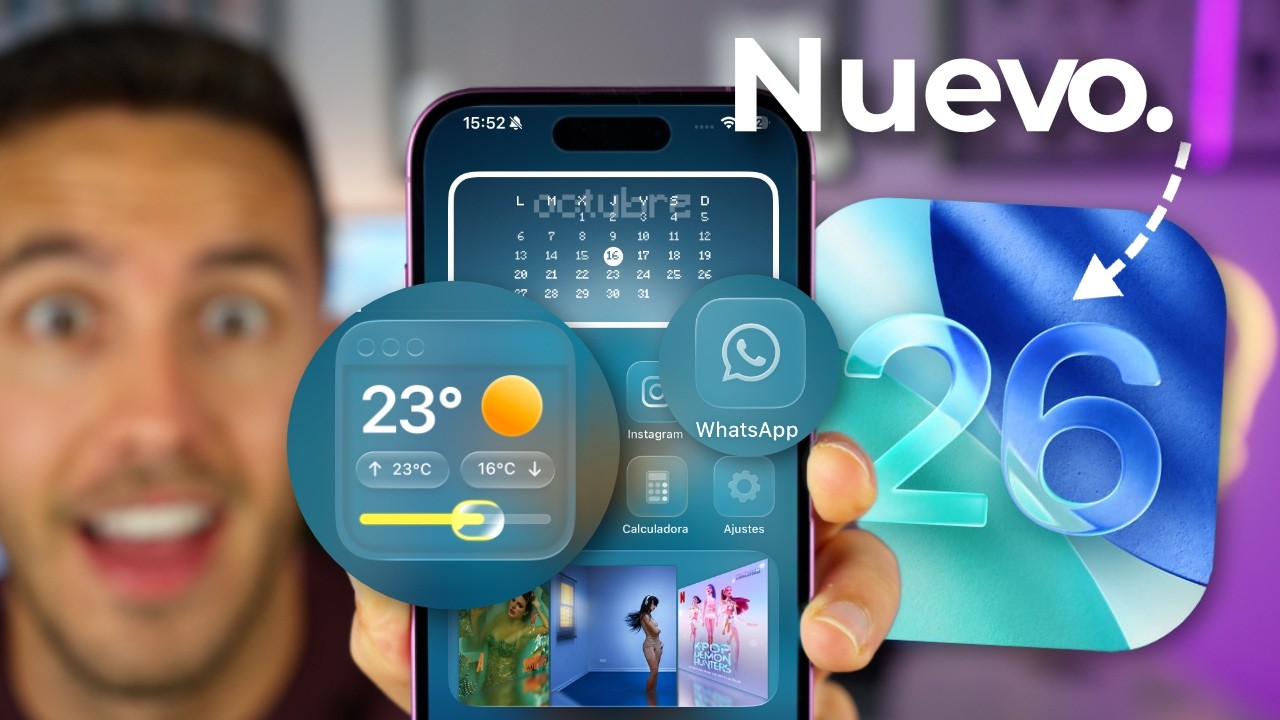
Modern iOS gives iPhone owners far more control over the appearance of the Home Screen and Lock Screen. Genius Manu's English-language tutorial demonstrates how wallpapers, app icons, widgets, and controls can be combined into a design that feels personal without making the phone harder to use.
Start with one wallpaper and a restrained color palette. A visually busy background can make labels and widgets difficult to read, while a simple image creates enough contrast for icons and information. Lock Screen widgets should prioritize glanceable information such as weather, battery status, calendar events, or activity progress.
On the Home Screen, widgets are most useful when they reduce the need to open an app. Calendar, reminders, weather, music, and battery widgets are practical choices. Third-party tools such as Widgetsmith, Widgy, and Color Widgets can offer more visual freedom, but each extra app may add setup work and request additional permissions.
Custom icons can complete the theme, though consistency matters more than decoration. Keep essential apps easy to recognize, avoid overcrowding every page, and test readability in both light and dark environments. The best custom iPhone layout is not simply attractive—it lets you find information and launch common actions faster.
Source: www.youtube.com
Conversation
0 commentsNo comments yet. Start a useful conversation.